

On “image quality” and “image size”
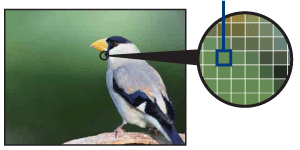
A digital image is made up of a collection of small dots called pixels. If it contains a large number of pixels, the image becomes large, it takes up more memory, and the image is displayed in fine detail.
“Image size” is shown by the number of pixels. Although you cannot see the differences on the screen of the camera, the fine detail and data processing time differ when the image is printed or displayed on a computer screen.
Description of the pixels and the image size
|
|
|
||||||


Selecting the image size for use
|
pixel |
|
|||
|
|
Many pixels |
|
Example: Printing in up to A3 size |
|
|
Few pixels |
|
Example: An attached image to be sent by email |
||


To change the image size
- Press (Image Size), and then press
 to select the size
Image size |
Usage guidelines |
No. of images |
Printing |
| 5M | For prints up to A4 (8×10") | Less
|
Fine
|
| 5M (3:2) | Shoot in 3:2 aspect ratio | ||
| 3M | For prints up to 13x18cm (5x7") | ||
| 1M | For printing in postcard size | ||
| VGA | Shoot at a small image size for e-mail attachments |


(P.Quality): Selecting the still image quality
You can select the compression ratio when digital images are saved. When you select a high compression ratio, the image lacks the fineness of detail, but has a smaller file size.
- Mode dial position:
 -
- -
- 
- Press MENU to display the menu
- Select
 (P.Quality) with
  on the control button.
 - Select the desired setting with , then press
 .
. - Press MENU to turn off the menu.
The menu items available vary depending on the mode dial position and settings. Only the available items are displayed on the screen.
Fine (FINE) |
Records with high quality (low compression). |
Standard (STD) |
Records with standard quality (high compression). |
Basic techniques for better images
- Focusing on a subject successfully
- Adjusting the light intensity
On “image quality” and “image size”
- On the effects of lighting
- On using the flash
